Add products in Seller Center via single listing, bulk upload, keyword match, URL import, app, or API. For desktop single listings, complete basic info, details, sales, compliance, and shipping, then review listing quality, preview, and submit from Products > Add Products; status updates appear under Products > Manage products. Follow prohibited/restricted product rules, use correct category and brand authorization where needed, and provide required identifiers, pricing, stock, images, and dimensions.
Introduction
Once you’re in TikTok Shop, the first step to starting your business is adding your products. Clear and unique content attracts customer interest and helps them quickly discover and choose products. TikTok Shop currently supports both single-product and batch-product uploads, and can display up to 1,000 products online.

How to add products to your shop
You can add products to your shop via your desktop, Seller Center app, and API.
In this guide, we will focus on adding products to your shop via Desktop.
Adding products to shop via desktop
Navigate to Products>Add Products
Seller Center and choose your preferred method to list
On this page, you can choose your preferred method to list a product.
- Add individual products: List 1 product at a time by entering all relevant information yourself. A detailed explanation is provided in section #2 below.
- Search keywords: Find a similar/matching product in TikTok shop and auto-fill its listing information, thereby allowing you to quickly list the product in your shop.
- Bulk listing: List multiple products at once using Excel templates.
- List with a URL: Enter a product URL from another website such as Amazon or Shopify to import the product’s listing information.
- Sync with other platforms: Use an integration app to sync with other platforms such as Amazon, Shopify, eBay, etc.
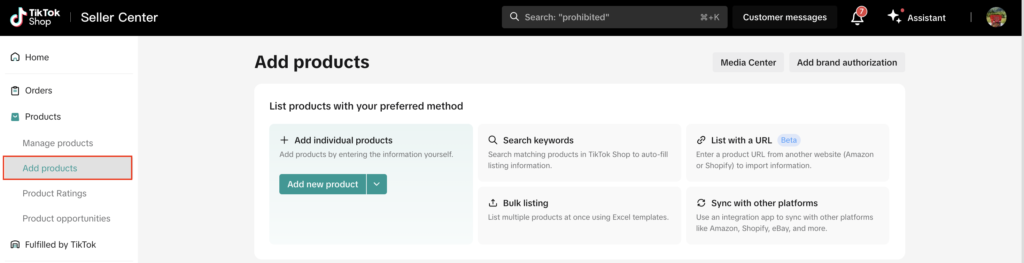
Adding individual products
First, click on the “Add new product” button to open the listing page.
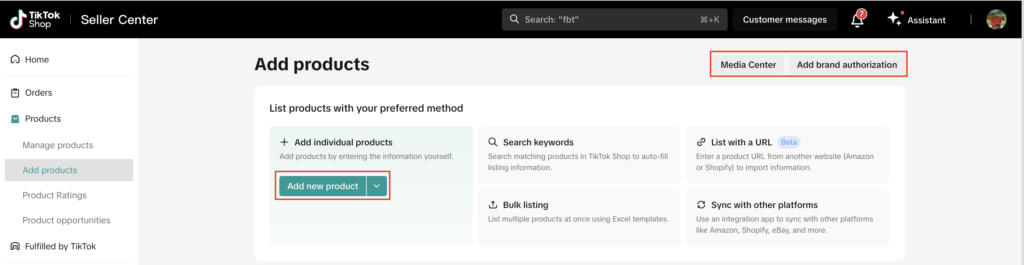
Media center: Access on-platform storage space for pictures and video materials related to your products, saving you time when uploading product media to your listings.
Add brand authorization: Obtain brand authorization here before listing branded products. Brand authorization shows customers that your products are authentic and are more likely to be recommended on TikTok Shop.
Once you are on the listing page, to upload a product, you need to provide information in the following sections.
- Basic information
- Product details
- Sales information
- Shipping
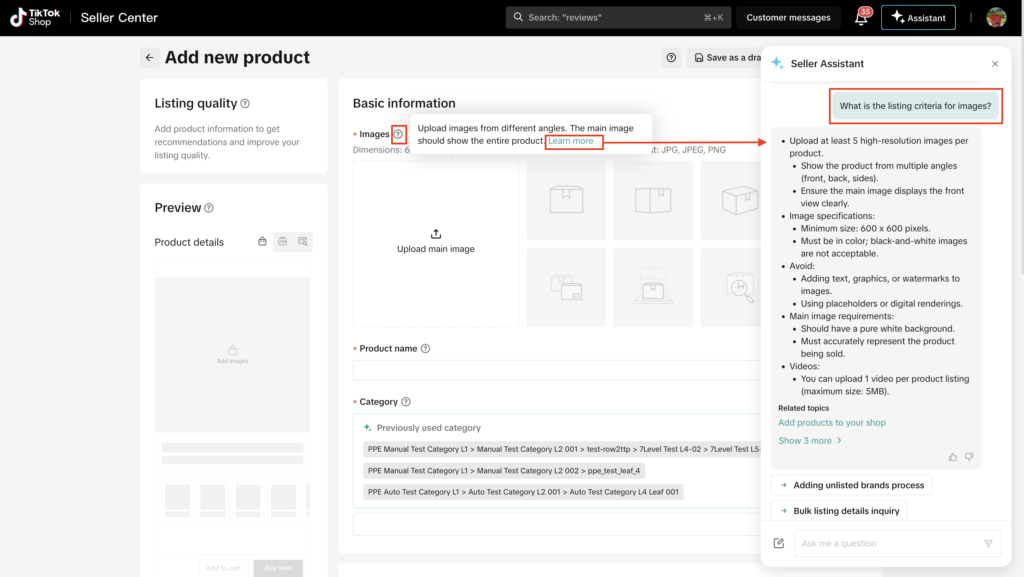
Additional sections such as product certifications may also be required to be completed based on your product.Seller Assistant support: At any point, if you need help filling out information in any of the sections below, please click on the ‘Assistant’ feature at the top to ask questions and receive help from available guides and resources instantly. You can also hover over the “?” next to any attribute and click on the ‘Learn more‘ link to invoke assistant’s help on a specific attribute.
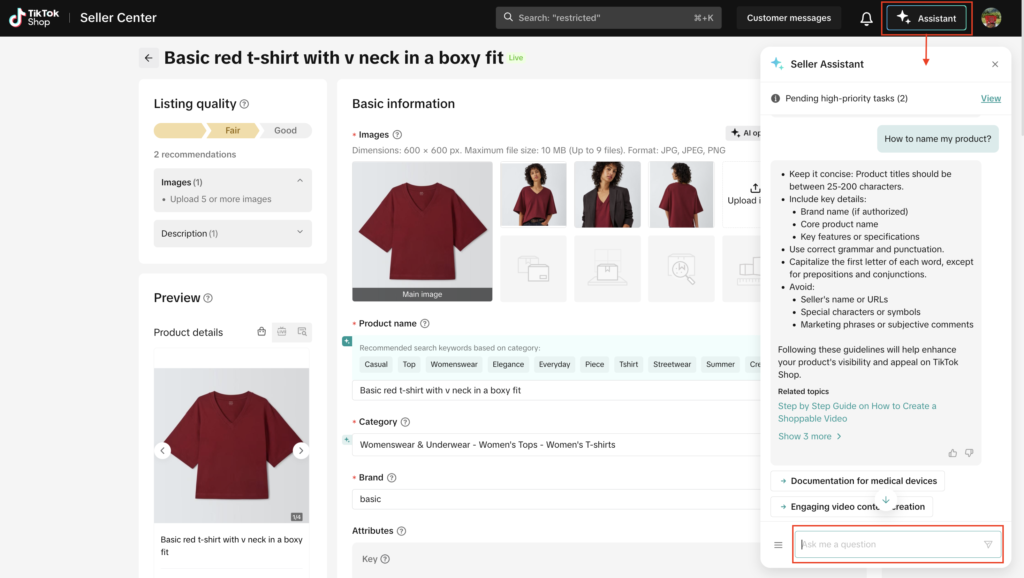
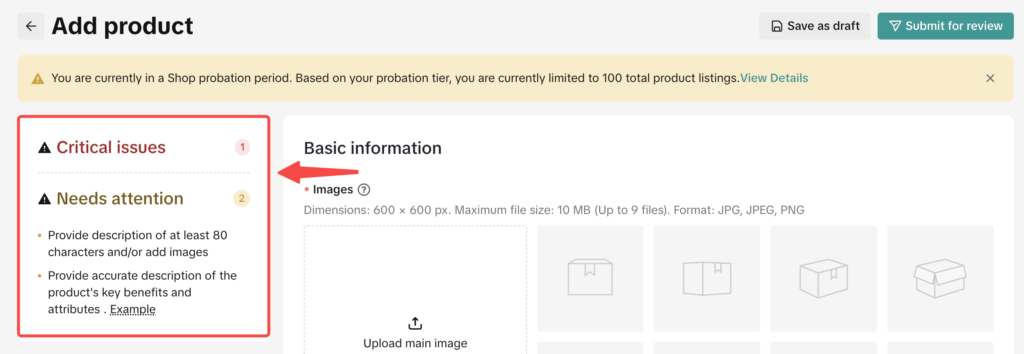
💡 Pro-tip: As you fill in your product information, pay attention to the suggestion module at the top left as it provides you with immediate, pre-submission feedback to save you time and prevent listing failures. This system validates your listing information in real-time against product quality standards and GNE policies and group potential errors in three ways:
- Critical Issues: These are mandatory fixes that prevent submission until resolved and guarantee immediate compliance.
- Needs Attention: This section uses predictive analysis to identify high-risk issues likely to cause the product to become unsellable after listing, allowing you to proactively eliminate post-submission rejection risk.
- Suggestions: These are additional recommendations focused on boosting your listing’s quality and search relevance to drive greater product traffic and sales.
Basic information
In this section, you will provide product images, enter a product name, choose the category and brand that best suits your product. Hover over each attribute’s “?” tool-tip to learn more about what is required.
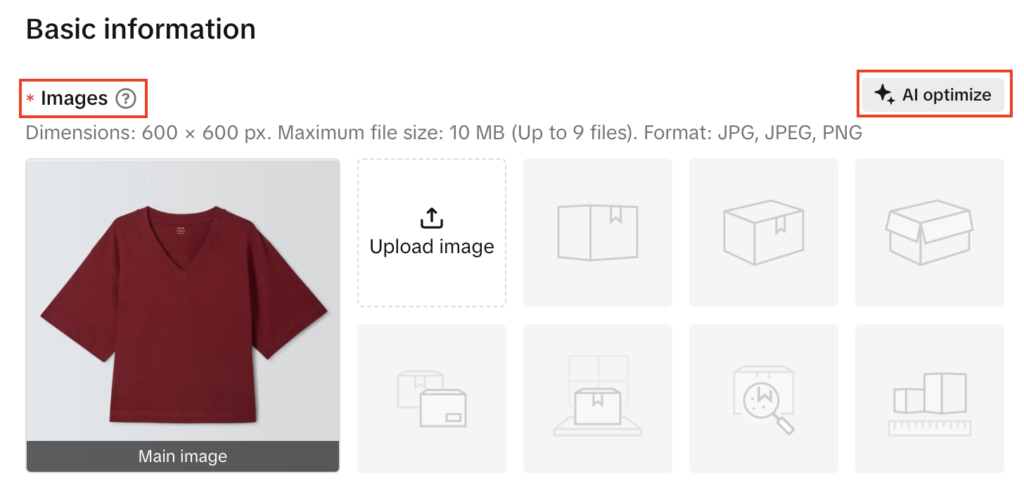
Images: Upload images from different angles. The main image should show the entire product. Images must be high-resolution with dimensions: 600 × 600 px. Maximum file size: 10 MB (Up to 9 files). Format: JPG, JPEG, PNG.
At least 1 image is required.
A maximum of 9 images per product.
Avoid adding text, graphics, or watermarks.
Show different angles and key features.
Images must accurately represent the product.
Ensure no misleading or low-quality images are used.
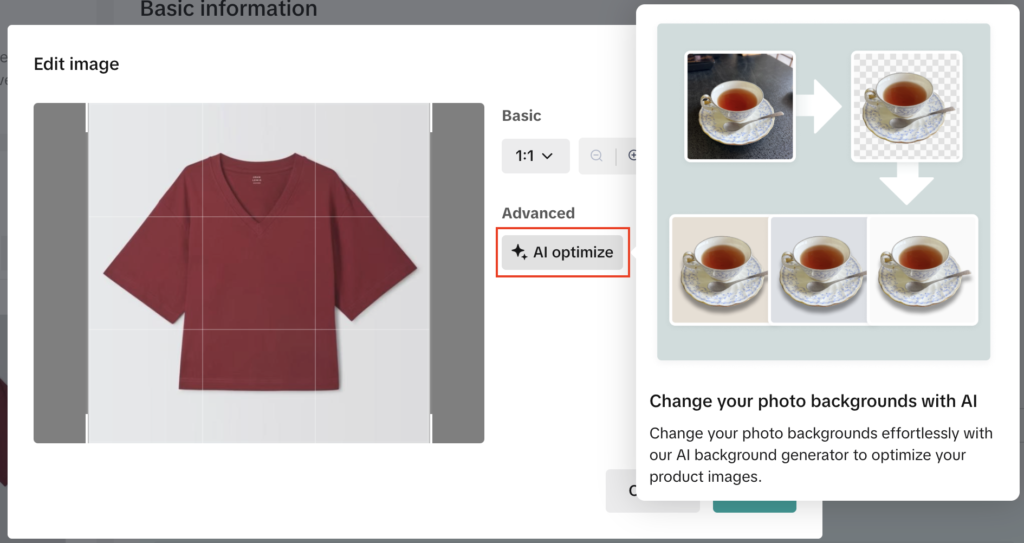
You can also use the “AI Optimize” function to change your background.
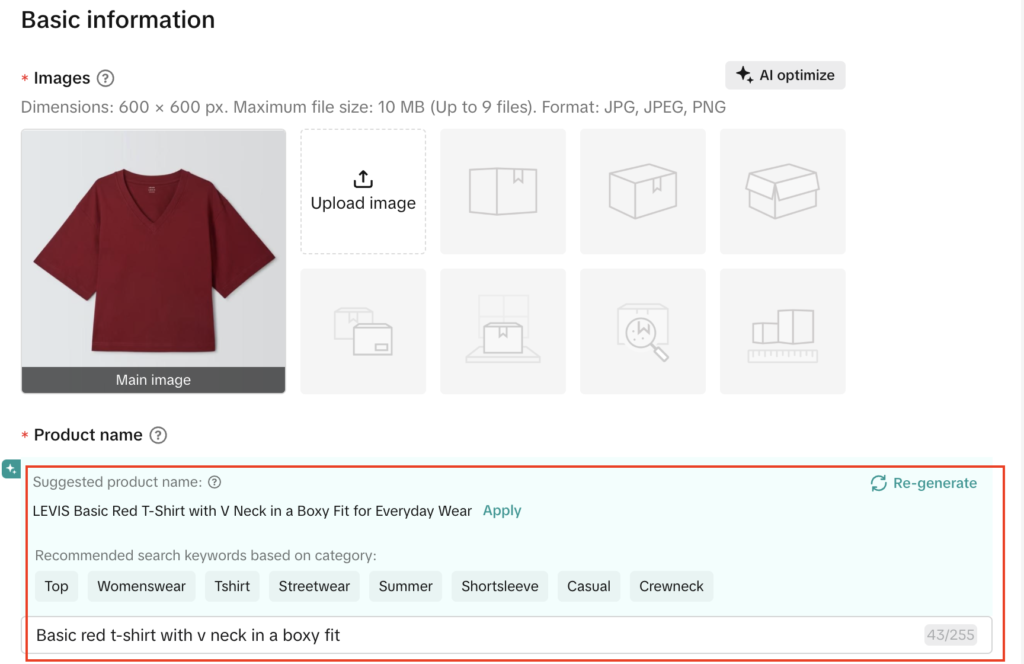
Product name: Titles should be between 25-200 characters and accurately describe your product. Avoid unnecessary elements like your seller name, URLs, or marketing phrases. Include the brand, application, type, and product features. You can also use our name or keyword suggestions to improve your product name. Click on “Apply” to apply our suggestion as your product name. Click on “Re-generate” until you are satisfied with the suggestion.
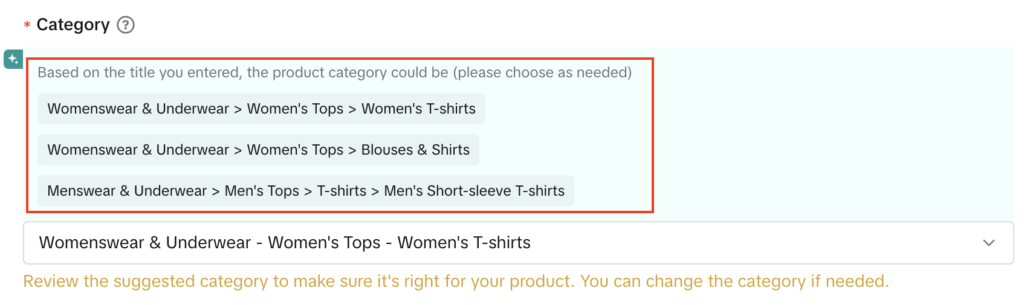
Category: It is important to choose the right category for your product to avoid mis-categorization, which leads to products not showing up in search results or enforcement actions, including removal of your listing. Some categories require extra approvals due to the Restricted Products Policy. You can choose to keep the recommended category shown by the system or choose the best-fit yourself by clicking on the drop-down and navigating to the right end-category. Please ensure your product matches the selected category to avoid violations.Please note, some categories are invite-only and require approval before you can list products under them. If a category is greyed out or unselectable, it is likely an invite-only category. To apply for an invite-only category, you need to send an email with the required information, including store name, store code, brand details, and product qualifications. Approval is not guaranteed and may take 8-10 working days.
Brand: Brand authorization shows customers that your products are authentic. These products are more likely to be recommended on TikTok Shop. Apply for the brand authorization if your product is qualified. Choose a brand from our recommendation or choose ‘No brand’ if it is not a branded product.

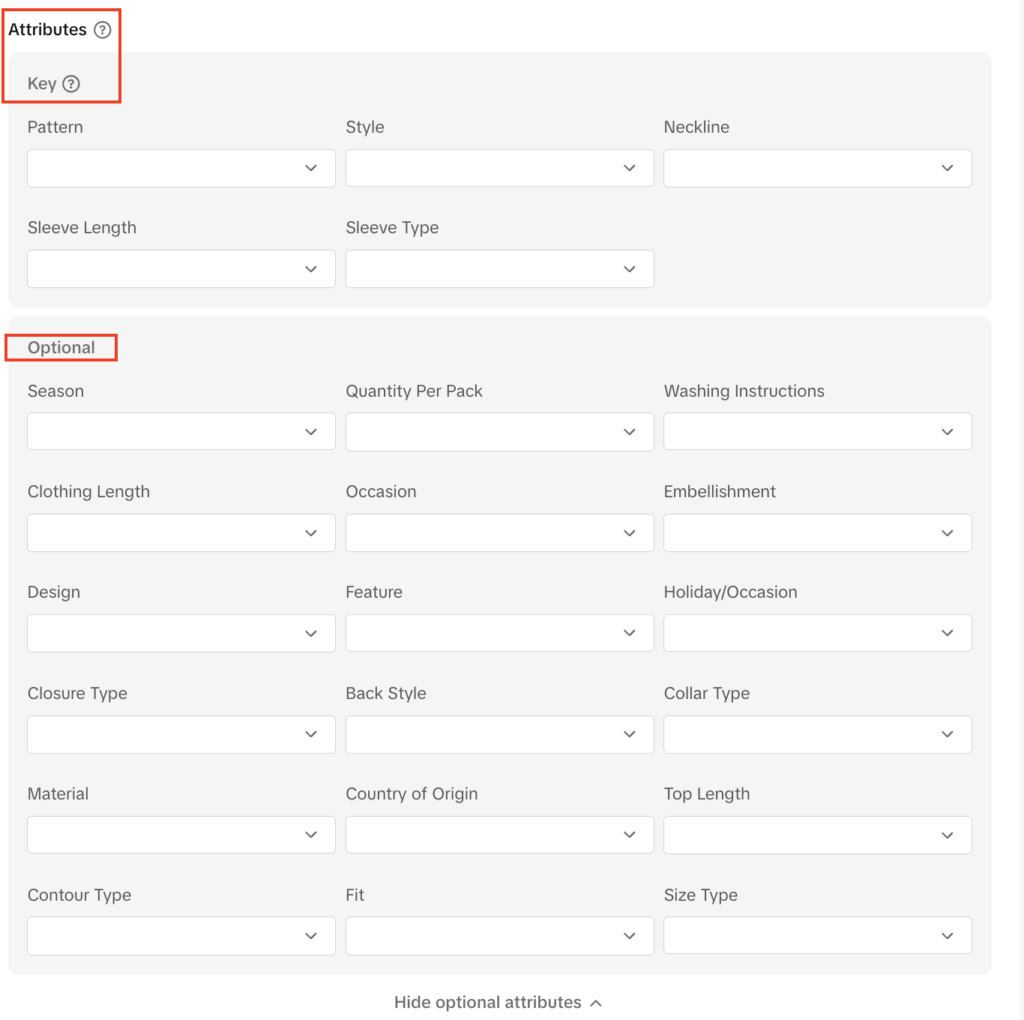
(Optional) Attributes: Although these fields are optional, details like size, color, and brand help customers find and understand your product better. Key attributes, especially influence customer purchase decisions and help improve your listing quality. Consider adding them to differentiate your product from similar products sold by other sellers.